
For 13 years we had the same screenshots on our wordpress.org plugin page. The first thing a potential user sees. And it was 13 years old! Also: low resolution. Ouch.
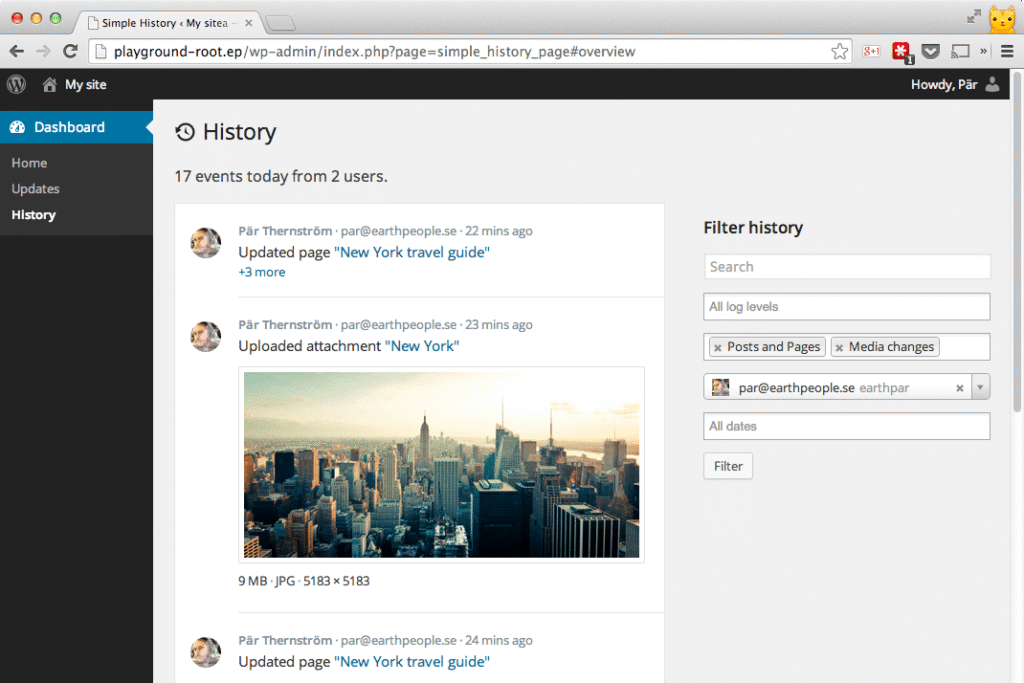
But how come it took so long for us to update them? Well, because we are lazy. And updating them was time consuming and boring:
- manually create some events like a page being updated or a user having their info updated
- make sure the users still have the same fake avatar
- resize the browser window to the same size as last time
- manually take a screenshot
- rename and compress the screenshot
- …and probably a few more steps I’m forgetting
It was plain boring, and if we just wanted to tweak one small thing on a screenshot we had to redo the whole process. Not fun!
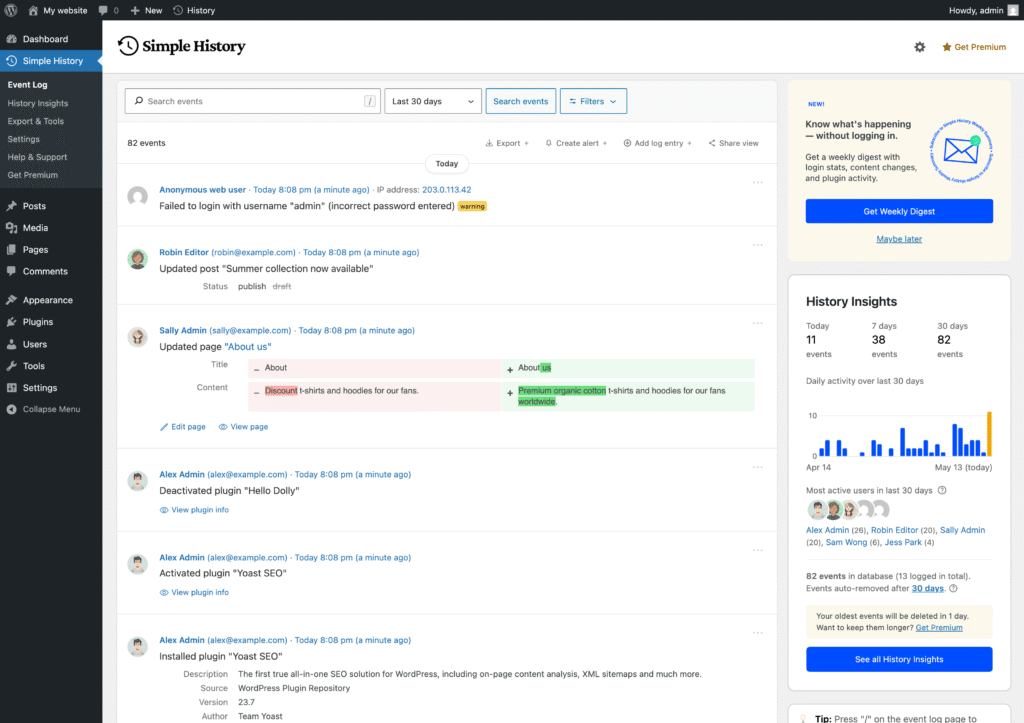
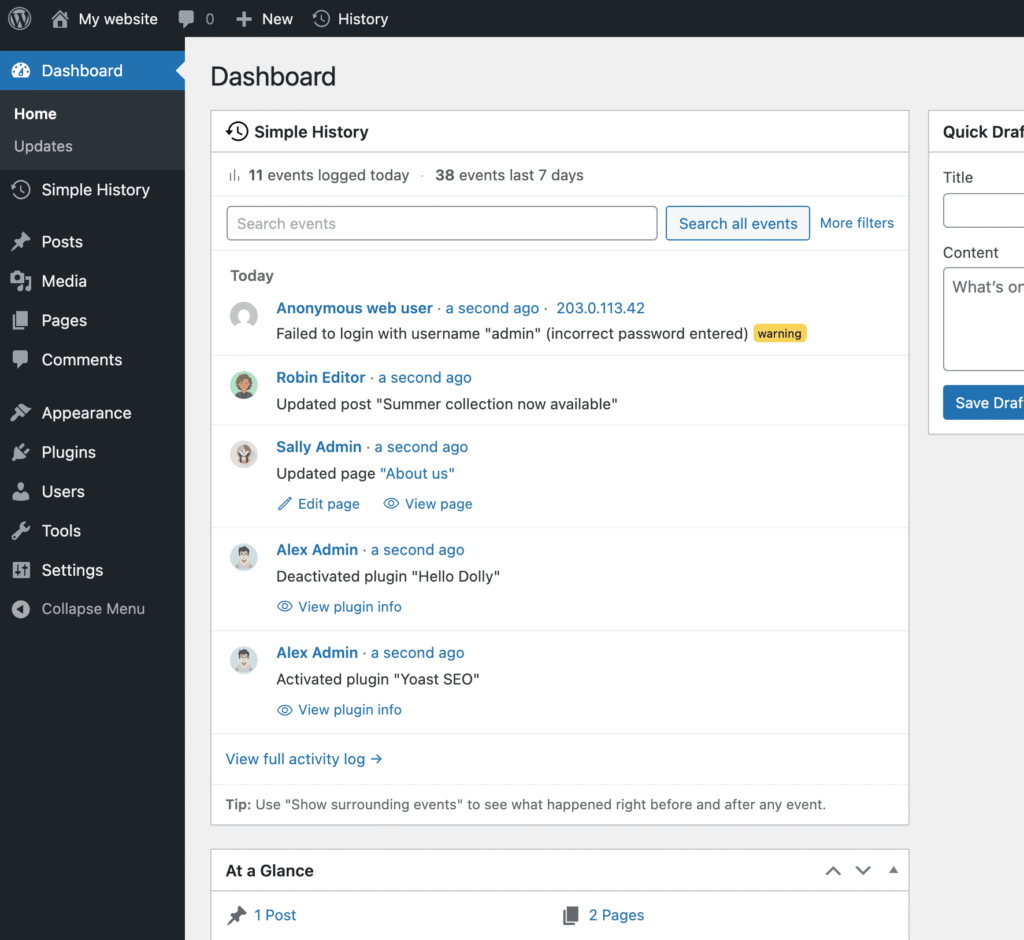
So we finally automated the whole thing. Now we write npm run screenshot and 90 seconds later we have two fresh images generated for us — the main log view and the dashboard widget — at retina resolution and already cropped to size. Fun!
Here is the new automated result. 🚀
How we did it (WP Playground and Playwright to the rescue)
Two pieces do almost all the work:
- WordPress Playground (CLI) — a fresh, disposable WordPress in a few seconds. No Docker, no MySQL, no leftover state from last week.
- Playwright — browser automation that logs in, navigates to the admin page, and takes the screenshot.
Around those we have a blueprint (blueprint.json) that sets up the site, a PHP file (events.php) that creates users and fires the curated events, and a tiny mu-plugin that silences noise and remaps avatars. That’s it.
The plugin itself is mounted from the working directory:
--mount=.:/wordpress/wp-content/plugins/simple-historyCode language: JavaScript (javascript)So local changes show up immediately — no rebuilds, no zip-and-install dance.
Curating the events
The events that end up in the log are the most important part of the screenshot. They tell a story, and they have to land within a glance.
We landed on six events that cover the three reasons people install Simple History:
- A failed login from a suspicious IP — for the “is anyone trying to hack me?” crowd
- A user publishing a post — for the multi-user content workflow case
- A user updating a page with an inline title + content diff — our differentiator
- A user updating a plugin with a changelog link — ops tracking
- A user uploading a photo with a thumbnail — visual variety
- WP-CLI creating a user with the administrator role — scripted activity + a little security tension
All from “Today”, all from named users with photo avatars, all spread across different loggers. The log feels alive instead of repetitive.
Below those six, events.php also generates around 50 historical events spread over 28 days. They never appear in the screenshot itself, but they make the History Insights sidebar chart look like a real site instead of a flat empty line.
What npm run screenshot actually does
- Playground boots a fresh WordPress
- The blueprint installs the mu-plugin, activates Simple History, sets site title + tagline, configures avatars
events.phpcreates users, fires the six curated events, and backfills 28 days of historical noise- Playwright logs in, navigates to the Simple History admin page, waits for the log to load, parks the cursor, hides admin notices, and screenshots the viewport at 1600×1130 with deviceScaleFactor 2
- The PNG lands at
.wordpress-org/screenshot-1.png, ready to deploy to wordpress.org on the next tag push
90 seconds. Repeatable. The screenshots will never drift from the actual plugin again — every release just re-runs the same script.
Adding more Playwright scripts
Each screenshot has its own Playwright spec file in tests/playwright/. To add a new one we drop in a screenshot-something.spec.js, point it at the admin URL we want to capture, and add it to the screenshot project in playwright.config.js. The next npm run screenshot picks it up automatically.
Behind the scenes, npm run screenshot runs tests/screenshot/run.sh, which boots the Playground, runs npx playwright test --project=screenshot against it, and tears the Playground down when the specs finish.
We already have separate specs for the main log, the dashboard widget, the banner mockup, the inline diff popover, the email preview and a handful more. Adding the next one is a few lines of Playwright.
The hard-won lessons
A few things that took an embarrassingly long time to figure out:
- Loggers always stamp now. Calling
$logger->info_message(...)always uses today’s timestamp — there’s no “fire this event but pretend it was yesterday” API. To backdate the 28 days of historical noise we write to thewp_simple_historytable directly. Miss a single context key like_user_idor_message_keyand the React app crashes with a delightfulCannot read properties of null (reading 'replace'). - The mouse hover leaves a grey background. Even with no user interaction, the cursor often lands on an event row after Playwright navigates. We park it in the bottom-left corner and dispatch synthetic
mouseleaveevents on the rows just to be safe. - Fire-order is reversed in the visual. The first event you fire gets the oldest timestamp and ends up at the bottom of the log. So
events.phpreads bottom-to-top compared to what you actually see in the screenshot. Took me a while.
One command, every release
Things that get done manually once a year never stay good. Things you can re-run with one command tend to.
If you want to peek at the actual files, the whole pipeline lives in tests/screenshot/ and tests/playwright/screenshot-*.spec.js in the Simple History repo on GitHub. And if you’ve got a similar marketing-image-refresh-procrastination problem, Playground + Playwright is a surprisingly nice combo for it.