
This release comes with two new ways to view the log: a compact view and table view for when you need to dig into what happened. You can also hide the sidebar now, to give the log the full width of the page. Also included are the regular fixes here and there, to make the plugin feel good in all ways.
A compact view of the log
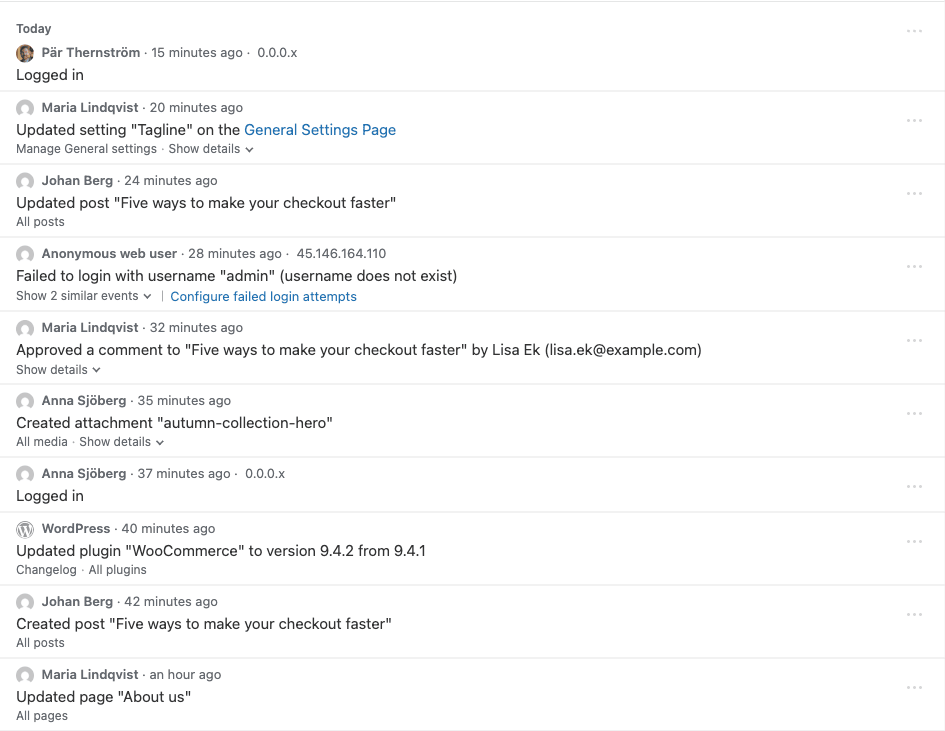
Simple History has a new compact view. Each event gets one tight row, so many more events fit on the screen at once. It works well on a busy site, when you want to scan what happened today without scrolling forever.
Switch views with the buttons to the right of Share view, above the event list. The log remembers your choice, so you get the same view next time.
If you tried it as an experimental feature in 5.33.0, you no longer need to turn anything on. It’s there for everyone now.
Hide the sidebar
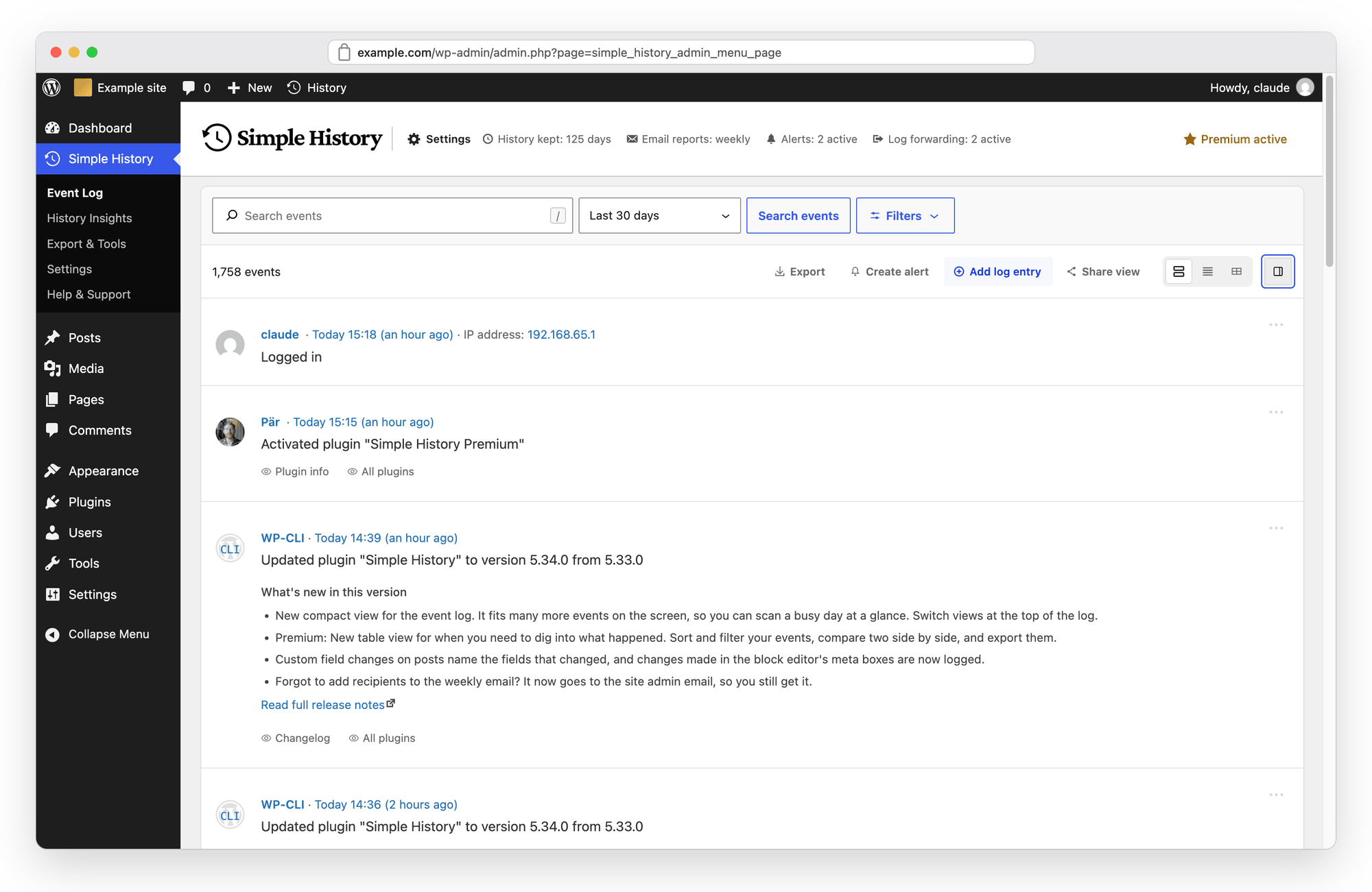
There’s a new button to the right of the view switcher that hides the sidebar. The event log then gets the full width of the page, which is nice on a smaller screen, or when you just want to read the log without the stats next to it. Click it again to bring the sidebar back.
Each view remembers its own choice. The detailed and compact views start with the sidebar, and the table view starts without it, since a table can put the extra width to good use.
Premium: a table view for digging into your log
The detailed and compact views are good for reading what happened on your site. When you’re looking for something specific, like who changed a setting last Tuesday or what happened right before the site broke, a table works better.
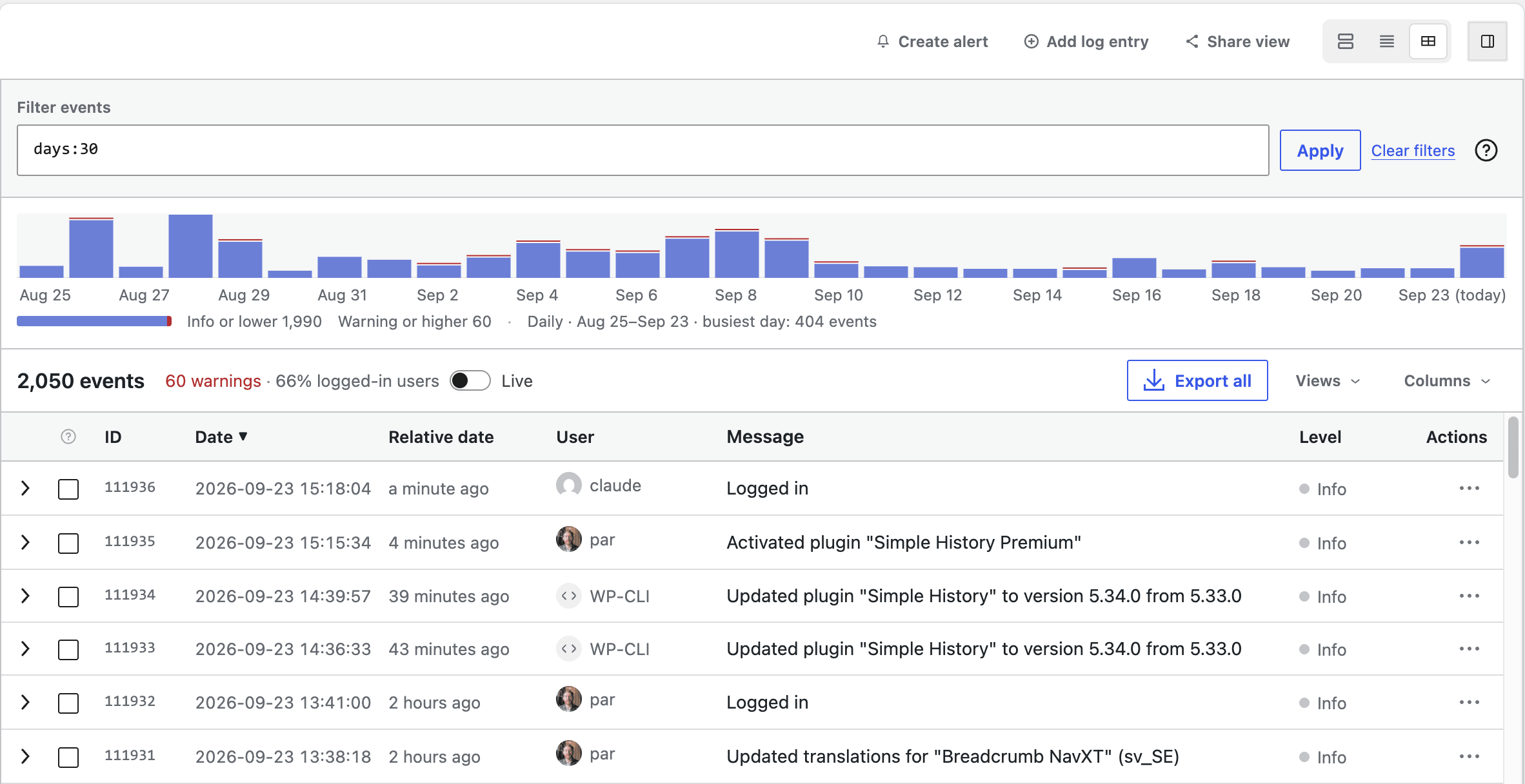
With Premium 1.16.0 there’s a third view button: Table. It shows your events in a table you can sort by any column, with the columns you choose. From there you can:
- Click a value in a cell to show only the matching events, or to hide them.
- Type filters in the query bar, like
level:error deploy. - Save a set of filters as a view and get back to it with one click.
- Select two events and compare them side by side.
- Export all events or only the selected ones, or copy them as CSV or JSON.
- See when events happened in the activity chart above the table, and click a day to filter to it.
- Copy the current filters as a WP-CLI command.
The Premium 1.16.0 release post has more about the table view, and the other changes in Premium.
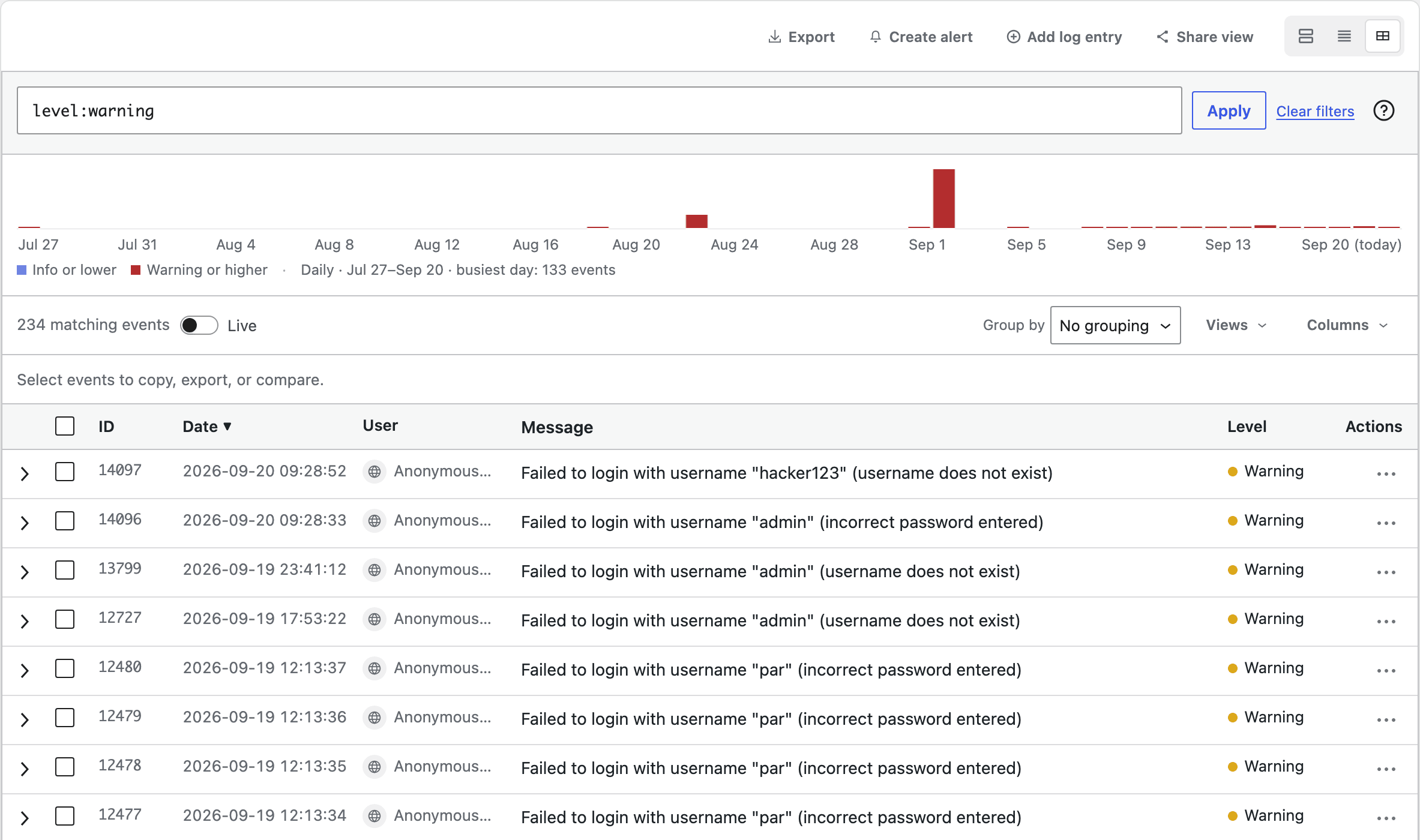
level:warning in the query bar. The chart shows when they happened. The table view is part of Premium.Weekly email without recipients
If you turned on the weekly email but forgot to add recipients, it was never sent, and nothing told you. It now goes to the site admin email until you add recipients, and the settings page says so. The test email goes to the same recipients as the weekly email, and the button says who that is.
For developers: sorting and counting events
Events can be sorted by date, id, level, logger or event type, through the REST API (orderby and order) and with WP-CLI (wp simple-history event list --orderby=id --order=asc). Sorting by level orders by severity, so the most serious events come first.
There’s also a new /events/aggregate endpoint that counts events instead of listing them, grouped by date, level, logger or initiator. It takes the same filters as the event list, so it counts exactly what the list would show.
Fixes
Sorting the log oldest first works now. The “new events” count above the log respects your filters, so it no longer announces events the list won’t show. And a security fix: database errors no longer include the database’s own error message in the API response. The full list is below.
Simple History 5.34.0 is out now. Update from Dashboard → Updates or the Plugins page in wp-admin, or download it from WordPress.org. If something looks off, let me know on the support page.
Full changelog
Added
- Table view for research and debugging sessions: sort, filter, compare two events side by side, and export (Premium).
- “Hide sidebar” button next to the view switcher, so the event log can use the full width of the page. Each view remembers its own choice: the table view starts without the sidebar, the detailed and compact views with it.
- Events can now be sorted by date, id, level, logger or event type through the REST API (
orderbyandorder) and on the command line (wp simple-history event list --orderby=id --order=asc). - Events can be counted instead of listed through the REST API (
/events/aggregate), grouped by date, level, logger or initiator. The same filters apply, so it counts exactly what the list would have shown. - Thumbnail on “Edited attachment” events, so you can see which image the event is about.
- Links on tips in the sidebar and dashboard widget, pointing to the documentation or feature page for what the tip describes.
Changed
- The compact event log view is no longer experimental. The Detailed/Compact switch is now available to everyone from the event log page.
- Sorting by level now orders by severity, so the most serious events come first instead of alphabetically.
- Custom field changes on posts name the fields that changed instead of only counting them.
- Custom field and term changes on posts are included in event details from the REST API and WP-CLI.
- Preview of the weekly email stays on the settings page after you turn the email on.
- New installs get a notice a few days before their oldest events are cleared out for the first time. It explains why, mentions that you can export your log, and stays until you close it.
Fixed
- Sorting the event log oldest first now works.
order=ascwas accepted and then ignored on the default event listing, which returned newest first anyway. - The “new events” count above the log now respects your filters. With “Hide my own events” on, or event types hidden, it counted events the list would never show — so it could announce new activity and then show you nothing when you clicked it.
- Changed post excerpts are labelled “Excerpt” instead of the raw field name.
- Custom field changes made in the block editor’s meta boxes, like the Custom Fields panel, are now logged.
- Empty custom fields that some plugins create when a post is first saved are no longer listed as added.
- Internal keys from Advanced Custom Fields no longer clutter the list of changed custom fields.
- Tips that mention Premium are hidden on sites that have turned promotional messages off.
- Image thumbnails on media events name the image for screen reader users.
- Weekly email with no recipients set was never sent. It now goes to the site admin email until you add recipients, and the settings page tells you so.
- Test email is sent to the weekly email’s recipients instead of to you, and the button says who that is.
- Experimental — Role and capability changes a plugin makes on its own, such as after an update, are credited to WordPress instead of whoever was logged in, and name the plugin that made them.
Security
- Database errors from the event log no longer include the database’s own error message in the API response. Reading the log needs a lower capability than most things in WordPress, and a MySQL error names tables and columns.