
This release is about logins and privacy. Logins with two-factor authentication are logged when the code is accepted, IP addresses in the log are only shown to administrators, and there’s suggested text about the log for your privacy policy. The weekly email settings got simpler too.
Two-factor logins (Two Factor, Wordfence) are logged when the code is accepted
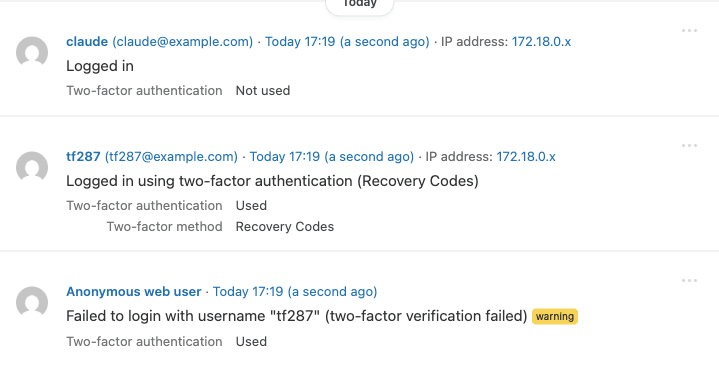
On sites using the Two Factor plugin (the feature plugin maintained by WordPress contributors), Simple History logged “Logged in” as soon as the password was correct, before the two-factor code had even been asked for. So someone with a stolen password who never got past the code screen still showed up in the log as logged in. That’s not what you want from an activity log.
Since 5.35.0, Simple History logs a two-factor login only after the code is accepted, not when the password is entered. Each login event also says whether two-factor authentication was used, and which method. On sites using Wordfence you see how the login was completed: authenticator app, recovery code, passkey or remembered device.
Wrong two-factor codes are now logged as failed logins, for Two Factor, Kadence Security (formerly Solid Security) and Wordfence. See all the plugins Simple History logs out of the box.
With Premium, you can get an alert by email, Slack, Discord or Telegram when someone fails a login, so you hear about it while it’s happening.
Only administrators see IP addresses
Editors can read the log by default, and until now they could also see the IP address of every event, which is more than most editors need. In Simple History 5.35.0 and later, only administrators can see IP addresses in the log, in event details, in exports and in search. Editors still see all the events, without the addresses. The secret RSS feed, if you’ve turned it on, still includes them. An IP address counts as personal data under laws like the GDPR, so it’s better when only the people who need it can see it.
I also stopped calling masked IP addresses “anonymized”. Under the GDPR, anonymous data is data that can no longer be linked to a person (Recital 26), and a masked address like 192.168.1.x, stored next to a username and a time, still can.
For developers: if editors on your site need the addresses, you can change who sees them with the simple_history/view_ip_address_capability filter.
Suggested text for your privacy policy
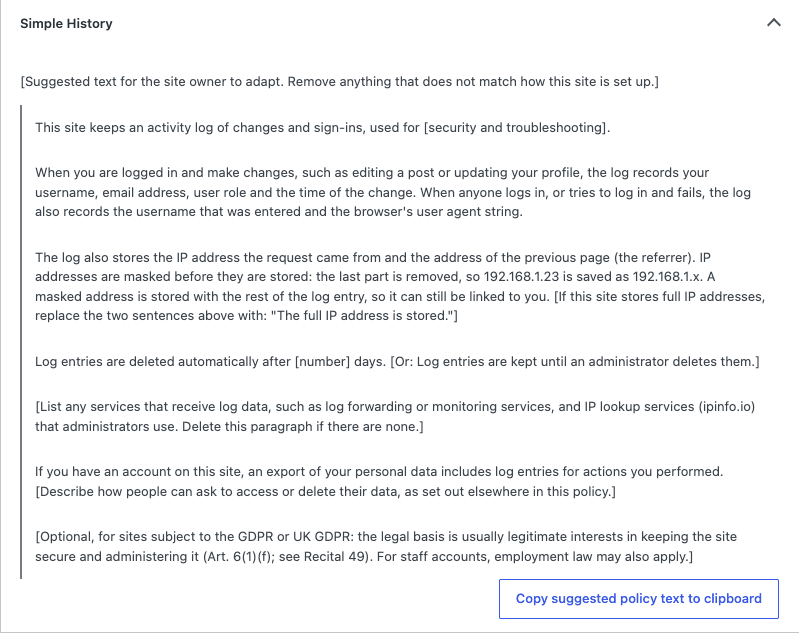
An activity log stores personal data, like usernames, email addresses and IP addresses, so it belongs in your privacy policy. Simple History now adds suggested text to WordPress’s own policy guide, under Settings → Privacy → Policy Guide. It says what the log records, how IP addresses are stored and how long entries are kept.
The parts in brackets are for you to fill in or remove, depending on how your site is set up. Read it through before you copy it to your policy. It’s a starting point, not legal advice.
Simpler weekly email settings
The weekly email is one of my favourite parts of Simple History. Every Monday it sends a summary of what happened on your site last week: logins, posts and pages, plugins and users, with every number linking to the events behind it. If you haven’t turned it on yet, you’ll find it under Simple History → Settings → Email Reports.
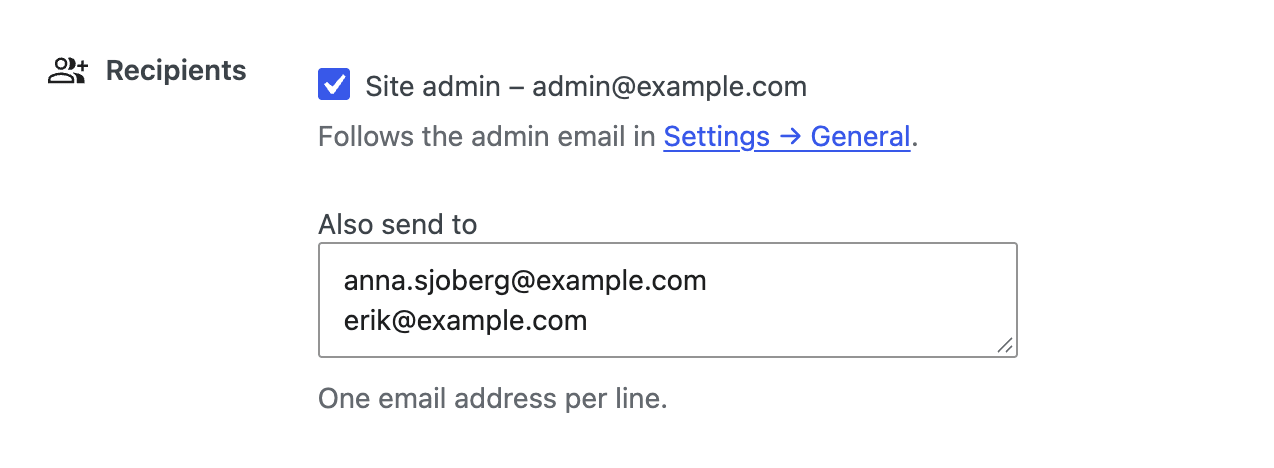
Picking who gets it is simpler now. Before, the site admin got the email only while the recipient list was empty. Add a colleague, and the admin’s copy quietly stopped. Now there’s a “Site admin” checkbox. Tick it and the email goes to the site’s admin address, and keeps following it if that address changes. Anyone else goes in “Also send to”.
With Premium, the weekly email also shows who edited which posts and pages, and when.
XML exports now have filter details
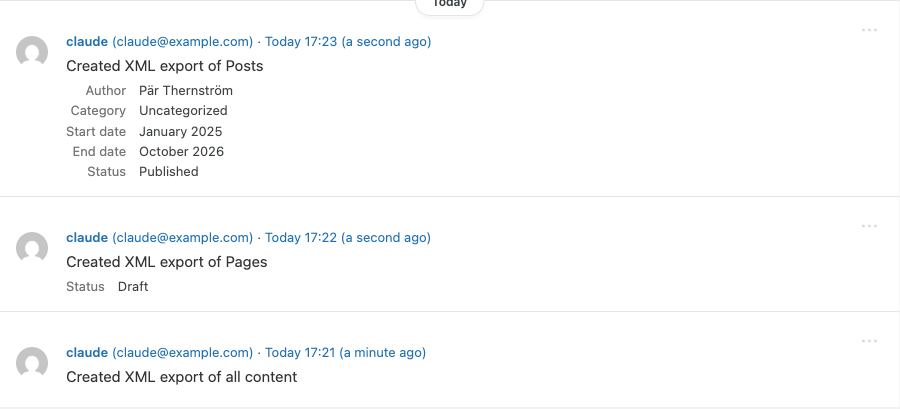
XML export events say what was exported, and which filters were used. This works for exports made before the update too.
New experimental feature: failed emails are logged
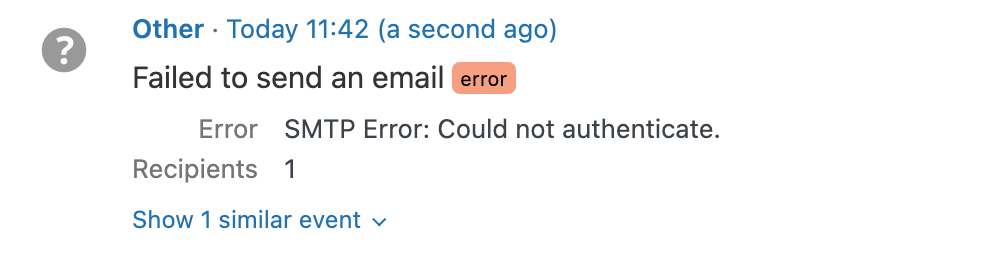
With experimental features on, Simple History logs emails that WordPress fails to send as errors, and a notice in the sidebar and in the weekly email settings shows how many failed in the last 30 days. When a site’s mail setup breaks, password resets, order emails and the weekly email all stop quietly. Now it shows up in the log.
The log doesn’t keep the email itself. It doesn’t store who it was for, the subject or the content, only the error and how many recipients there were. If the error message contains an email address, the part before the @ is hidden, like ***@example.com.
The error is the one WordPress’s mail library, PHPMailer, reports. These are the ones you’re most likely to see:
- “Could not instantiate mail function.”: WordPress’s default PHP
mail()failed, often because the server has no mail program set up. - “SMTP Error: Could not connect to SMTP host.”: an SMTP plugin points to a mail server that cannot be reached.
- “SMTP connect() failed.”: the same, from the SMTP connection itself.
- “SMTP Error: Could not authenticate.”: the SMTP username or password is wrong.
- “SMTP Error: data not accepted.”: the mail server refused the message.
- “SMTP Error: The following recipients failed:”: the server rejected one or more addresses.
- “You must provide at least one recipient email address.”: the email had no valid recipient.
On some servers with no mail setup at all, PHP reports the email as sent even though it went nowhere. Then there is no error to log, so no failure shows up.
To try it, tick “Experimental features” under Simple History → Settings. To log every email WordPress sends, not just the failed ones, use the Debug & Monitor add-on.
Simple History is free, and it stays that way. Premium adds alerts, longer log retention, a table view for digging into events, and exports for when a client asks who changed what.
Update to Simple History 5.35.0 from Dashboard → Updates or the Plugins page in wp-admin, or download it from WordPress.org.
If something looks off, let me know on the support page. And if Simple History is useful to you, a five-star review genuinely helps.
Full changelog
Added
- Suggested privacy policy text for the activity log, under Settings → Privacy → Policy Guide.
- Support for the Two Factor plugin: logins are logged when the two-factor code is accepted, not when the password is entered, and show whether two-factor authentication was used.
- Logins on sites using Wordfence show whether two-factor authentication was used, and how: authenticator app, recovery code, passkey or remembered device.
- Experimental — Emails that WordPress fails to send are logged as errors, and a notice in the sidebar and email settings shows how many failed in the last 30 days.
- Experimental — WP-CLI events store the command, the server user and, for commands run over SSH, the masked IP address they came from. Nothing is shown in the log yet.
Changed
- Weekly email settings have a “Site admin” checkbox that sends the email to the site’s admin address and follows it when it changes, and adding more recipients no longer stops the email to the admin.
- IP addresses in the log are shown only to administrators. Editors and other roles that can read the log no longer see them in events, event details, exports or search. The secret RSS feed still shows them.
- IP addresses are described as masked instead of anonymized, since a masked address can still be linked to a person through the rest of the log entry.
- XML export events say what was exported (all content or a post type) and show the author, category, date and status filters used, also for past exports.
- Experimental — Role logger: removing capabilities from a role is a notice instead of a warning, and granting a capability that controls the site (such as
manage_optionsorinstall_plugins), or creating a role with one, is now a warning.
Fixed
- The IP address of people who comment is now masked like every other IP address in the log, and only administrators can see it. Earlier comment events keep the full address but are hidden from other roles.
- Core files check no longer reports official WordPress files in the site’s language or in English as modified, such as a German
wp-config-sample.phpon a site installed in English. - Image changes in event details, such as a new featured image, line up with the text changes above them.
- Event details are easier to read on phones: each label sits above its value, and image thumbnails fit inside their column.
- Wrong two-factor codes from the Two Factor, Kadence Security (formerly Solid Security) and Wordfence plugins are logged as failed logins.