
Premium 1.15.0 adds a Splunk channel for log forwarding, and fixes connection tests so they tell you what they actually tested.
Send your activity log to Splunk
If your team already watches logs in Splunk, WordPress can now go there too. Turn on the Splunk channel, paste your HTTP Event Collector URL and token, and events start arriving as they happen — logins, post edits, plugin changes, failed logins — each one tagged with the user who did it.
If you read the 1.14.0 notes and went looking for the Splunk channel — it was in the code, but never actually switched on. Now it is.
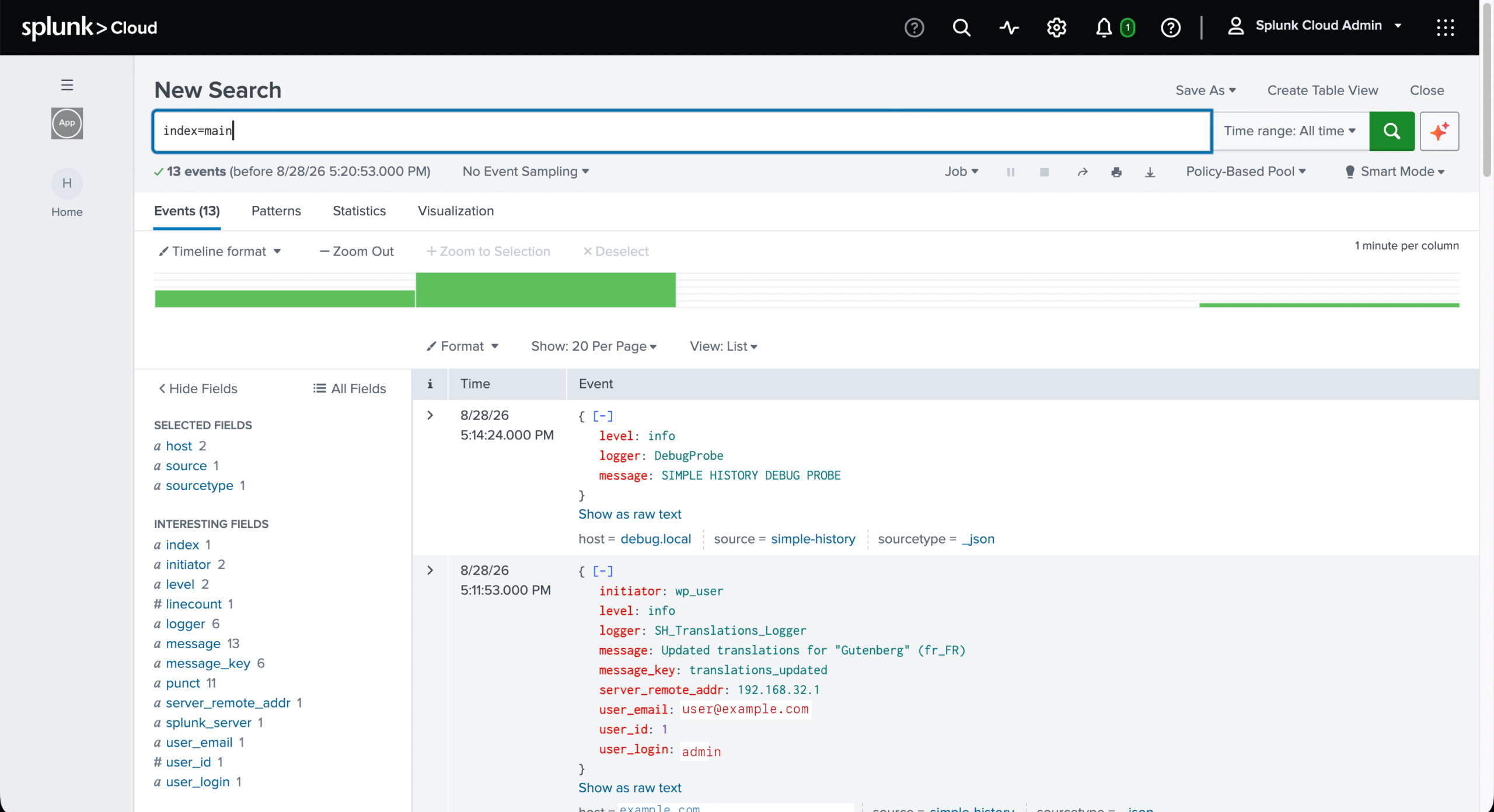
Splunk’s setup has a few traps, so there’s a step-by-step guide covering all of them: which URL to use (it’s not the one in your welcome email), how to create a token that’s allowed to write to your index, and how to confirm the events actually landed. That last part is where most setups stall — Splunk accepting an event and you being able to find it are two different things.
Connection tests that say what they tested
The test button has always tested your saved settings, not whatever’s sitting in the form — that hasn’t changed here, and it won’t: testing unsaved values would mean sending your credentials through a second code path on every click. What was wrong was the label. It said “Test Connection,” so pasting a fresh API key and hitting test could get you “API key is not configured,” with the key sitting right there in the box.
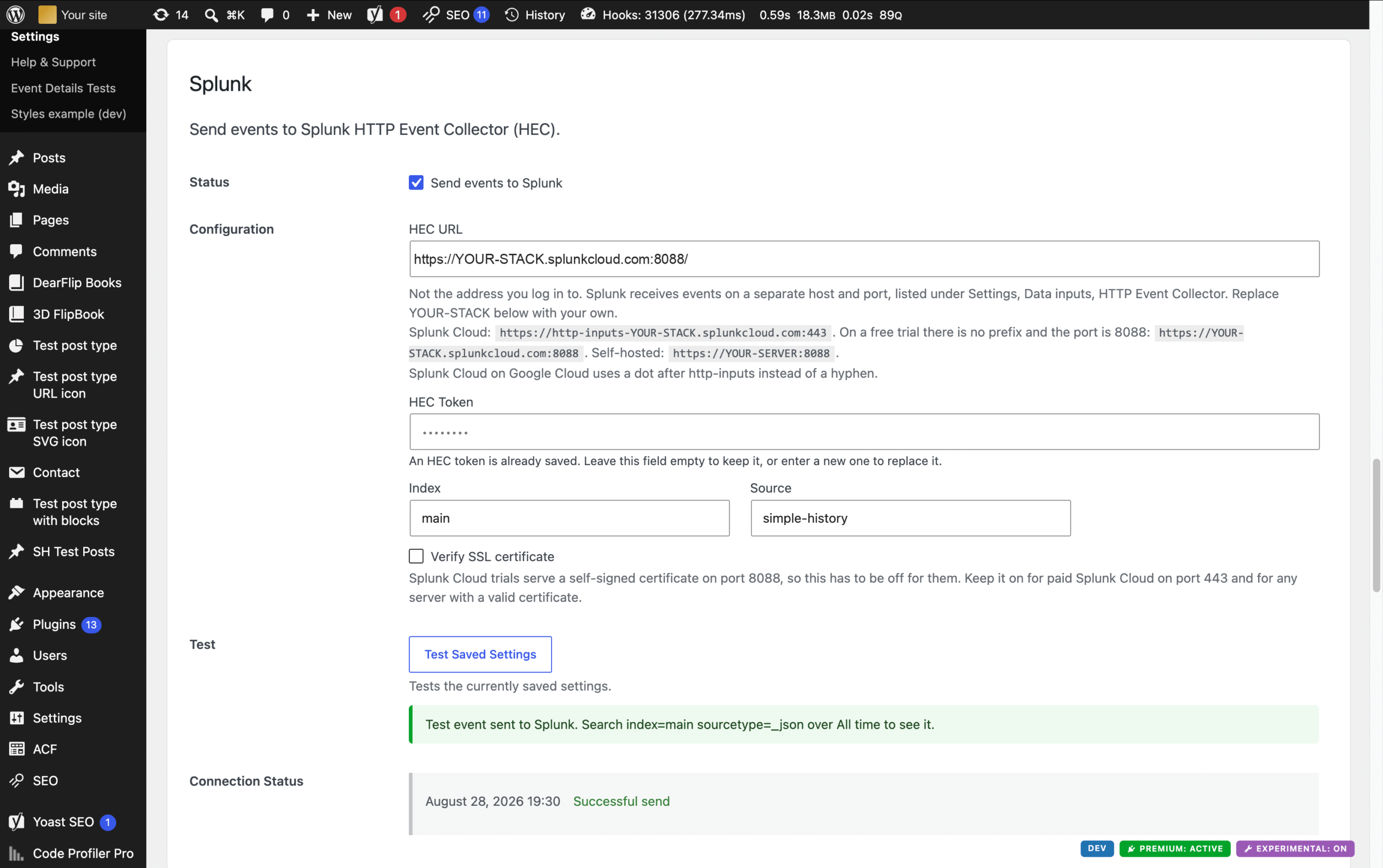
The button now says Test Saved Settings, and a hint underneath tells you which case you’re in — saved and ready, or save first. Test with unsaved changes and the result says so, instead of failing quietly. Failure messages are specific now too (“No Datadog API key saved yet. If you just entered one, save your changes first.”), and a failed test no longer counts toward the auto-disable threshold, so troubleshooting a channel can’t be the thing that switches it off.
Full changelog
Added
- Splunk channel — forward events to the Splunk HTTP Event Collector (HEC).
- Setup guide for Splunk, linked from the channel settings.
Changed
- Channel test buttons say whether they are testing saved settings or unsaved changes.
- Channel test results are announced to screen readers.
- Splunk settings explain which HEC URL to use, and when SSL verification has to be off.
- A successful Splunk test names the search that finds the event.
- Setup screen respects hosts and plugins that allow or block plugin installation in code, not only
DISALLOW_FILE_MODS. - Requires Simple History 5.29.0, up from 5.26.0.
Fixed
- Connection tests no longer count toward automatically disabling a channel.
- Channel tests no longer report a missing key or token that was typed but not saved.
- A test run with unsaved changes now says it tested the saved settings.
- Channel URLs that include a port are no longer discarded, and a URL without a scheme is saved as
httpsrather thanhttp. - An invalid channel URL keeps the previously saved value and shows an error.
- Remote Syslog host field accepts a pasted
host:portvalue. - Setup screen no longer crashes when another plugin filters the plugin information returned by WordPress.org.
- Block editor assets rebuilt, so features added since 1.9.0 reach the editor.
Security
- Misc security hardening.
Update from your WordPress dashboard — Premium 1.15.0 needs Simple History core 5.29.0 or later. It’s also fully translated into all 22 supported languages, including everything new here.
If something looks off, let me know. And if Simple History is useful to you, a five-star review genuinely helps.